HP Printer Test Page
Print this free general-purpose test page for a broad visual check on many HP printers. The same printed symptom can have different causes on DeskJet/ENVY/OfficeJet/Smart Tank inkjets and LaserJet printers, so the guidance below separates those technologies.
Disclaimer: Printer Test Print is an independent website and is not affiliated with HP or any printer manufacturer. This is a general-purpose test sheet, not an official HP document.
Tip: To save this test page as a PDF, click the print button and choose “Save as PDF” as the destination in your browser’s print dialog. Set paper size to A4 or Letter and keep margins at default.
- Use 100% scale
- Turn off “fit to page” if available
- Print in color for color sheets
Download the PDF version for A4 or Letter paper, or print directly from this page.
Printer Test Page (for HP Printers)
1 · Color Blocks
Some HP inkjets use tri-color cartridges. Missing or shifted mixed colors can help identify which color family to investigate, but confirm the physical cause with the printer's own diagnostic report and supply status.
2 · Black Text Samples
8px — The quick brown fox jumps over the lazy dog. 0123456789
12px — The quick brown fox jumps over the lazy dog. 0123456789
18px — The quick brown fox jumps over the lazy dog.
3 · Alignment Grid
Grid should be square with a centered crosshair. Doubled or offset lines justify checking alignment/calibration options for the exact model. Menu names vary, and LaserJet models use different imaging technology from HP inkjets.
4 · Grayscale Scale
5 · Fine Line Test
6 · Ink / Toner Check Section
How to Use This Page With an HP Printer
Use the printed sheet as an external reference, then compare it with HP's own print-quality report for your model. Do not apply one repair path to every HP family: an inkjet with nozzles and a LaserJet with toner/imaging components can show similar streaks for different reasons.
HP Inkjet Families: DeskJet, ENVY, OfficeJet and Smart Tank
On HP inkjets, missing or streaked color blocks can justify checking ink supply and printing HP's built-in Print Quality Diagnostic report. If that report shows defects, HP's model instructions may offer printhead cleaning and alignment. Repeated cleaning should follow the exact model guidance rather than a fixed number copied across all printers.
Example: HP Print-Quality Diagnostic Pattern
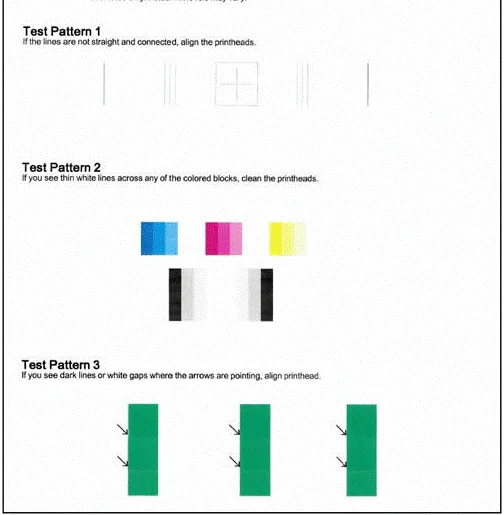
This cropped example shows an HP-generated diagnostic pattern. Use your exact model's report and HP instructions because the pattern, menu path and maintenance options can differ across HP families.
HP LaserJet
Do not use inkjet printhead/nozzle instructions on LaserJet models. For LaserJet output, use the laser test page and the model's HP print-quality troubleshooting documentation. Fading, repeating marks, backgrounding and toner scatter belong to a toner/imaging/fusing workflow rather than nozzle cleaning.
What the Printed Patterns Can Tell You
- One weak color: confirm supply status and the printer's own report before replacing a cartridge or running maintenance.
- Offset or doubled grid: check alignment/calibration options appropriate to the exact model and technology.
- Weak black: distinguish an inkjet black-channel problem from LaserJet density/toner/imaging behavior.
- Fine-line gaps: on an inkjet this can support a nozzle investigation; on a laser use laser-specific diagnostics.
Disclaimer: Printer Test Print is an independent website and is not affiliated with HP or any printer manufacturer. This is a general-purpose test sheet, not an official HP document.
Frequently Asked Questions
No. This is an independent general-purpose test sheet. HP's built-in diagnostic reports and model documentation remain the authority for maintenance steps.
No. LaserJet printers are laser/toner devices, not inkjet nozzle systems. Use laser-specific print-quality guidance for your exact model.
Check supply status and print the model's built-in print-quality/nozzle-style diagnostic. Use HP's documented cleaning or alignment procedure only when the result supports it.