Why Black Ink or Toner Prints Gray
Washed-out black does not automatically mean the cartridge is empty. First separate a driver/quality setting from a consumable, nozzle, toner-density, paper or print-system problem.
Use a Density Test
Print the black and white test page. Compare the solid black area, small text and stepped densities. If every element is uniformly lighter, check print mode and density settings before maintenance.
Density Reference
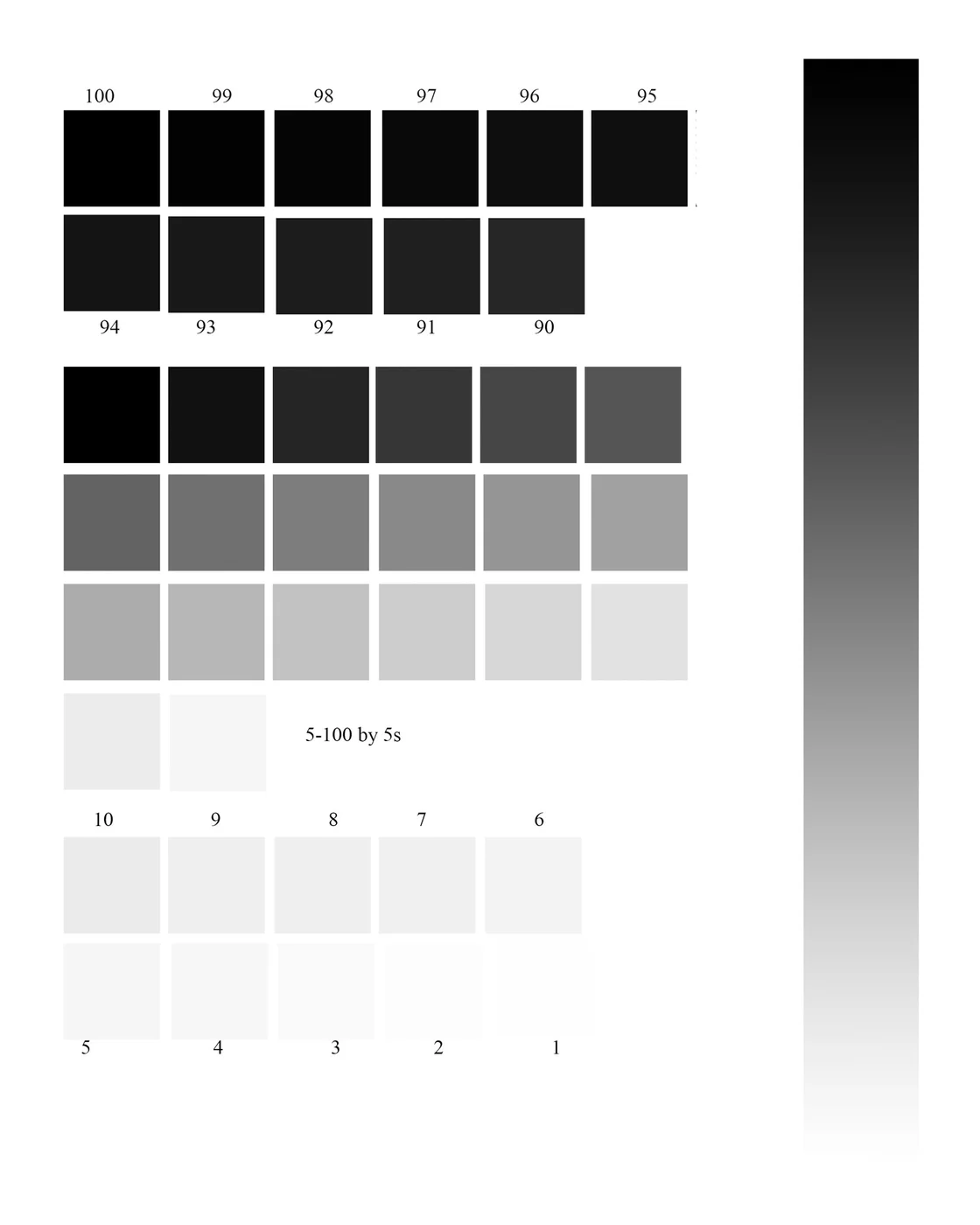
This reference chart is useful for comparing whether dark tones remain distinct and whether the darkest area reaches a convincing solid black. It is an illustrative reference, not a photographed printer result.
Check Draft, Eco and Toner-Save Modes
These modes intentionally reduce ink or toner coverage. Also check that the driver is not applying a low-density or economy profile. Reprint at normal quality with the same paper.
If It Is an Inkjet
Weak black-looking output can relate to ink level/supply, a cartridge, nozzle condition, media/quality settings or the printer's choice between pigment/photo black on some models. Print the built-in nozzle check and follow the exact model guidance rather than assuming cleaning is always the answer.
If It Is a Laser Printer
Low toner is one possibility, but density settings, toner distribution, cartridge/imaging condition, paper and other components can affect black coverage. If the printer has an internal quality report, compare it with the browser test.
Paper Matters
Very absorbent or unsuitable paper can make inkjet black look less dense; media settings also change how printers lay down ink or fuse toner. Use a normal plain-paper setting for a plain-paper diagnostic unless your model documentation says otherwise.